2012年10月9日星期二
2012年3月27日星期二
Evaluation Virtual Appliance Quick Start Guide for Citrix XenApp
Evaluation Virtual Appliance Quick Start Guide for Citrix XenApp
This document provides step-by-step instructions for extracting and running the Citrix XenApp 6 Evaluation Virtual Appliance. This virtual appliance is based on the Microsoft WindowsServer 2008 R2 partner VHD image.
http://www.citrix.com/site/resources/dynamic/salesdocs/CitrixXenApp6EVASetupGuide.pdf
This document provides step-by-step instructions for extracting and running the Citrix XenApp 6 Evaluation Virtual Appliance. This virtual appliance is based on the Microsoft WindowsServer 2008 R2 partner VHD image.
http://www.citrix.com/site/resources/dynamic/salesdocs/CitrixXenApp6EVASetupGuide.pdf

2011年12月22日星期四
Citrix Provisioning - Importing Target Devices into a Collection
Importing Target Devices into a Collection
Updated: 2010-04-08
The Import Target Devices Wizard allows you to import target device information from a file. The target device information must first be saved as a .csv file, it can then be imported into a device collection.
Note: The .csv text file can be created with a .txt file, NotePad.exe or Excel. It contains one line per target device, which is formatted as follows:
DeviceName,MAC-Address,SiteName,CollectionName,Descriptionwhere DeviceName=Name of new target device and MAC-Address= MAC address of new device; such as 001122334455, 00-11-22-33-44-55, or 00:11:22:33:44:55.
The wizard can be accessed from the farm, site, and device collection right-click menus. If accessed from the site or collection, only those target devices in the import file that match the site and collection by name, will be included in the import list.
The wizard also provides the option to automatically create the site or collection using the information in the file, if either does not already exist. There is also the option to use the default collection’s device template, if it exists for that collection.
A log file is generated with an audit trail of the import actions. The file is located in:
C:\Documents and Settings\All Users\Application Data\Citrix\Provisioning Services\log
To Import target devices into a Collection:
- In the Console, right-click on the device collection that the target devices should be imported to, then click Target Device>Import devices. The Import Target Devices Wizard displays.
- Type or browse for the file to import. The target device information is read from the file and displays in the table below. Information can include the target device name, MAC address, and optionally description.
- Highlight one or more target devices to import. If applying the collection template to the imported target devices, select the Apply collection template device when creating devices checkbox.
- Click Import to import the .csv text file containing target device information, into the selected collection. The status column indicates if the import was successful.
Sample,
Computer-00,00-13-72-QQ-88-22,Site,CyberArea, Rm1 ,
Citrix Provisioning - How to Export Target Devices to a .CSV File
Citrix Provisioning - How to Export Target Devices to a .CSV File
http://support.citrix.com/article/CTX118832
http://support.citrix.com/article/CTX118832
2011年10月11日星期二
2011年10月3日星期一
Provisioning Services and Microsoft Volume License Activation
This article describes Windows Server 2008 / Windows 7 Volume License Activation with Provisioning Services
ref: http://support.citrix.com/article/CTX124106
Microsoft provides two forms of volume license activation for Vista: Key Management Server (KMS) and Multiple Activation Key (MAK). The choice of which form to use depends on whether Citrix standard-image mode is needed.
KMS Model: KMS volume license can be used with Provisioning Server for Desktops in either Private Image or Standard Image Mode. Clients communicate to a central Key Management Server. Client machines identify themselves to the KMS by sending a hard-drive signature ID to the KMS.
MAK Model: MAK activation, which requires that key and activation information be created and stored uniquely on each client (target device), is only compatible with Provisioning Server for Desktops in Private Image Mode, and only when each vDisk is built uniquely for each machine (vDisks cannot be cloned). Because of these limitations, use of MAK’s for machines that are served by Provisioning Server for Desktops, is not recommended.
ref: http://support.citrix.com/article/CTX124106
2011年9月2日星期五
2011年7月7日星期四
Is XenApp 5 Support Windows 2008 R2?
Support Announcements
- Server 2008 R2 is not supported by XenApp 5.0
- XenDesktop 4 is not supported by Microsoft Windows Server 2008 R2
- Smart Auditor agents prior to 1.3 are not supported on Microsoft Windows Server 2008 R2
- XenApp Fundamentals 3.0 does not support Microsoft Windows Server 2008 R2
ref: http://support.citrix.com/article/CTX122601
2011年7月6日星期三
Enabling Citrix Provisioning Server Verbose Boot Mode
So you have enabled every log level to trace within Provisioning Services and yet still want MORE! :) Try enabling the Streaming Services Verbose mode! This valuable diagnostic tool will give you valuable information during the boot process of your clients as they try to connect to the Provisioning Servers. To enable Verbose mode on the Streaming Service, run Provisioning Services Configuration Wizard and when you reach the Stream Servers Boot List, Click Advanced. From this Advanced properties screen, you can now enable Verbose Mode. Be careful in production environments though since clicking through this wizard will restart the provisioning services to enable the new configuration.

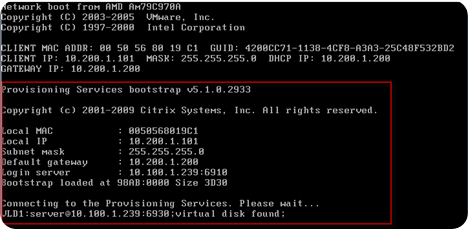
Once enabled, while clients are PXE booting, you will see the above diagnostic information. Great for troubleshooting and verifying that your DHCP/PXE environment is working correctly with Citrix Provisioning Server.
ref: http://www.vmwareinfo.com/2009/06/enabling-citrix-provisioning-server.html
訂閱:
文章 (Atom)